
How to export all your Instagram saved reels and keep them in one place
Years of saved reels sit in one Instagram list you can't search. Instagram lets you download that list, and BhaiFinder can turn it into a library you can actually search. Here's the whole process, start to finish.
👉 Short answer: Open Instagram → profile → ☰ → Accounts Center → Your information and permissions → Export your information. Export only Saved as JSON. When the file is ready, open BhaiFinder → You → Agentic Bhai → Connectors → Instagram → Import your saves and pick the ZIP. Every saved post and reel lands in your library, with your collection names, sorted and searchable.
Why export your Instagram saves?
Instagram's Saved tab is one long list, newest first, with no search. Collections help only if you sorted every reel by hand. Exporting gets you a copy of everything you ever saved, and importing it into BhaiFinder makes each reel searchable by what it was about, in Hinglish or English.
Step 1: Request your export from Instagram
- Open Instagram → your profile → ☰ menu → Accounts Center.
- Tap Your information and permissions → Export your information.
- Tap Create export → choose your Instagram account → Export to device.
- Tap Customize information and keep only Saved (under Your Instagram activity). Set Date range: All time and Format: JSON.
- Tap Start export. Instagram emails you when it's ready, which can take from a few minutes to a few hours. Download it from the same screen.
Tip: choose only Saved. A full export is much bigger and takes longer.
Step 2: Import it into BhaiFinder
- Open BhaiFinder and go to the You tab → Agentic Bhai → Connectors.
- Tap Instagram, then Import your saves.
- Pick the ZIP you downloaded. No need to unzip it (or pick saved_posts.json from inside it).
- Follow it under Recent imports. You can keep using the app while it runs.
Prefer a computer? Log in at bhaifinder.com/login, unzip the export and upload saved_posts.json. Add saved_collections.json too if you want to keep your collection names.
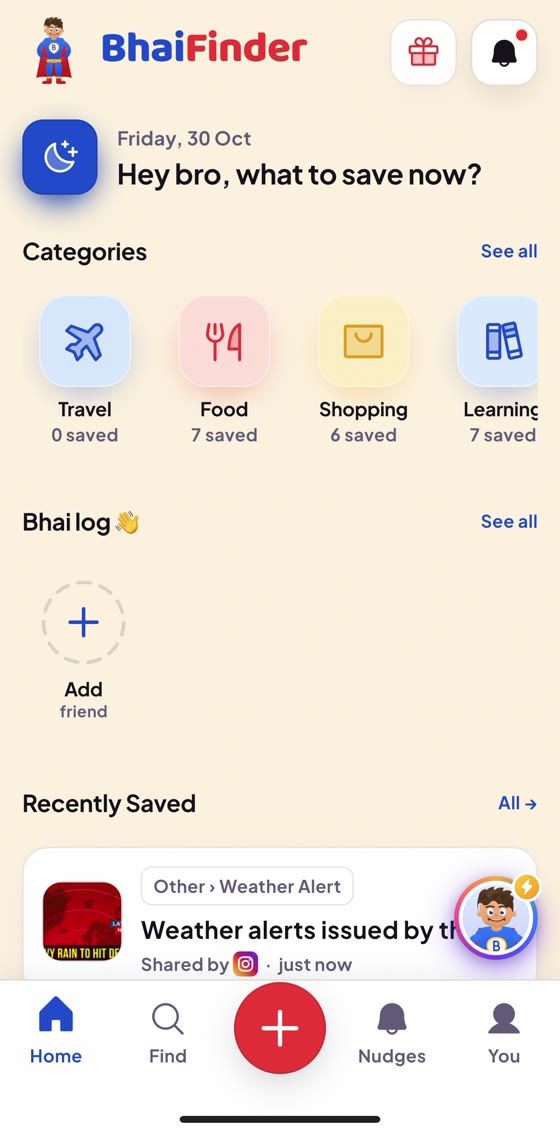
What happens after the import
- Every saved post and reel comes in, with the collection names you used on Instagram.
- Bhai reads each one and files it into a category like Food, Travel or Learning.
- Search by what you remember, like “that Goa café” or “leg day workout”, instead of scrolling.
- Show original opens any reel back in Instagram.
Good to know: each imported item uses 1 save from your plan. If your monthly saves run out, the import pauses and shows “Stopped, monthly saves used up”. Bhai Pro Max has unlimited saves, so big Saved folders come in all at once.
Bonus: export your Facebook saved items too
- Open Facebook → Menu → Settings & privacy → Settings → Accounts Center.
- Tap Your information and permissions → Export your information.
- Tap Create export → choose your Facebook profile → Export to device.
- Tap Customize information, keep only Saved items and collections, All time, JSON, then Start export.
- In BhaiFinder: Connectors → Facebook → Import your saves and pick the ZIP (or your_saved_items.json).
FAQ
Can I download all my saved reels from Instagram?
Yes. Instagram's Accounts Center has Export your information. Choose only Saved, All time and JSON, and Instagram prepares a file with everything you saved.
Does the import keep my Instagram collection names?
Yes. BhaiFinder brings in every post and reel from your Instagram Saved together with your collection names.
How long does the Instagram export take?
Usually from a few minutes to a few hours. Instagram emails you when the file is ready to download.
Do I need to unzip the file?
Not in the BhaiFinder app. Pick the ZIP directly, or pick saved_posts.json from inside it. On the website, upload saved_posts.json and saved_collections.json.
Does importing use my monthly saves?
Yes, each imported item uses 1 save from your plan. Bhai Pro Max has unlimited saves.
Bring your whole Saved folder home
Import it once, then find any reel by asking. Free to start.
Related: Save Instagram reels and search them · Add reels to a collection on Instagram · Import YouTube, Spotify and Google Maps lists · Find a reel you saved months ago